


AxCrypt Vault – User Guide
AxCrypt Vault is a secure, encrypted container for storing your sensitive files and folders. Anything added to the Vault is automatically encrypted, with no manual cleanup or extra steps required.
Configure the Vault
Please configure the Vault by navigating to Settings → Advanced Settings → Vault Settings.
Select where you want your encrypted data to be stored → Select the Folder → Confirm.
You can choose to randomize the file name on encryption.
Files dropped into the Vault will be removed from their original location and moved into the Vault.
2 Easy Ways to Add files and folders to encrypt automatically in a Vault
Use the 'Vault' Icon
Drag&Drop
Removing Files or Folders from an AxCrypt Vault
Files and folders stored in a Vault are secured automatically. To remove them, they must be taken out of the Vault individually and moved to another location.
Note: The entire Vault cannot be removed or unsecured at once. Files and folders must be handled one at a time.
Open the configured Vault folder.
Select the file or folder you want to remove.
Open it with AxCrypt.
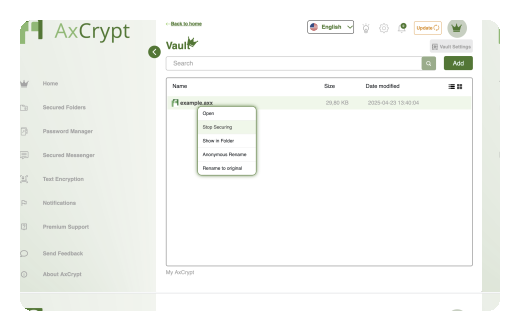
Right-click and choose Stop Securing.
Move the file or folder to a location outside the Vault.
Viewing Your Vault
Your Vault contents can be viewed in :
List View, or
Grid View
You can switch between these anytime.
What is Vault?
AxCrypt Vault is a secure, encrypted container for storing your sensitive files and folders. Anything added to the Vault is automatically encrypted, with no manual cleanup or extra steps required. It works like a dedicated encrypted folder that you can place anywhere on your computer, with full control through Vault Settings.
Key goals of the Vault
AxCrypt Vault is designed to help you:
Create a protected, encrypted container (Vault).
Drag and drop files or folders for instant protection.
Automatically encrypt and decrypt files behind the scenes.
Work securely without worrying about manual cleanup.
How the Vault works?
Encryption Behavior
Once your Vault is created:
Any file or folder added to the Vault is automatically secured using AES-256 encryption.
Files remain in a standard folder structure on your local system, while the contents are fully protected.
When you open a file from the Vault:
The file is temporarily unlocked in memory or a secure temporary location for use.
As soon as you close the file, AxCrypt automatically secures it again, with no manual action required.
Security & Access Controls
The Vault becomes accessible when you are logged into the AxCrypt application.
If AxCrypt locks due to inactivity, manual lock, or system sleep, Vault access is automatically restricted.
Files and folders in the Vault can be accessed only while AxCrypt is running and unlocked.
My Vault screen
The My Vault screen is a dedicated, secure place where all your encrypted files and folders reside.
Key points:
Everything you add gets encrypted automatically.
There is no need for manual cleanup like in Secured Folders.
A dedicated menu may appear in the app's side navigation depending on your layout settings.
Search inside Vault
Use the search bar to quickly find files or folders.
As you type, AxCrypt will highlight matching items—similar to the dynamic search in the User File Activity Log.
Updating your Vault Path
You can move your Vault to a different folder or drive, but there are important conditions :
What happens when you change the Vault path
The previously configured Vault folder is no longer treated as a Vault.
Files remaining in that folder behave like files in a regular secured folder.
Any files still present will be accessible based on their current security state.
AxCrypt supports only one active Vault per system.
A confirmation warning is shown before the Vault path is changed.
AxCrypt Vault offers a seamless, transparent way to protect your sensitive files. With automatic encryption, auto-locking, secure access controls, and a simple drag-and-drop interface, it ensures that your data stays safe without interrupting your workflow.
Move faster with our tutorials!

FAQ
What happens to my files when I add them to the Vault?

Can I have more than one Vault on my computer?
Do I need to manually encrypt or decrypt files inside the Vault?
Can I remove or decrypt the entire Vault at once?
When is my Vault accessible?
What happens if I change the Vault path?